
Scheduling & crews
Put the right people on the right job. Assign a lead and a crew to any visit, see who's working what, and balance the week at a glance.
Ways to look at your schedule
Open Schedule from the sidebar. Switch between Day, Week, and Month, and on the Day view choose how it's laid out:
- By time — a single vertical timeline of the day.
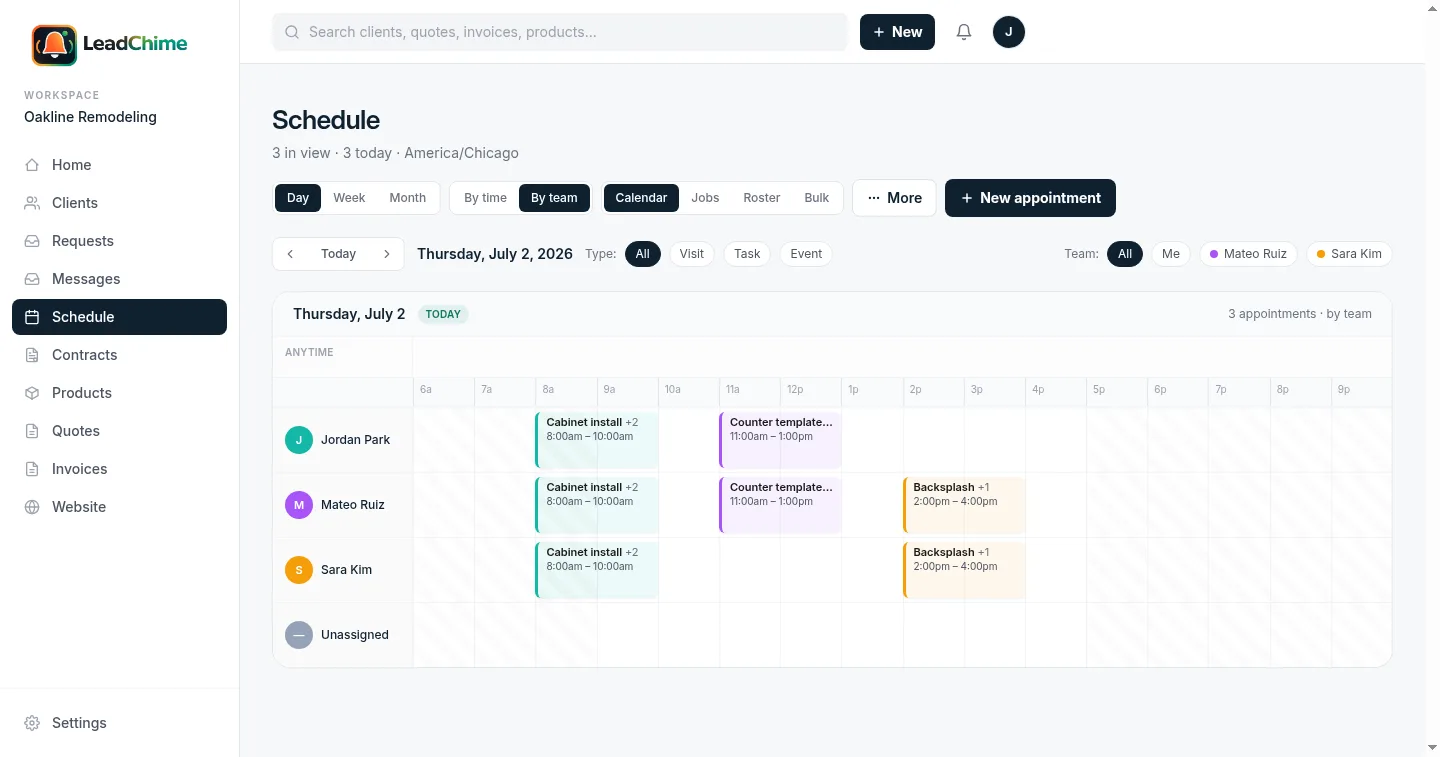
- By team — one horizontal lane per person, so you can see everyone's day side by side.
Drag an appointment to reschedule it, or drag its edge to change how long it takes. Use the team and status filters up top to focus on one person or hide cancelled visits.
Assigning a lead and a crew
Open any appointment (or create a new one). In the Assignment card:
- Assign to sets the lead — the primary person on the job.
- Under Crew, check anyone else who's working the same visit.
Everyone you check will see the visit on their own schedule. The lead concept keeps things familiar — reminders, colors, and existing workflows still key off the lead — while the crew ride along.
Only your teammates can be crew. Invite people first under Settings → Team; they'll then show up as options to add to a visit. Members are free — add as many as you like.
Seeing the whole crew: Day → By team
Switch the Day view to By team. Each person gets a lane, and a visit shows up in every assigned person's lane — the lead's and each crew member's. A small +2 badge on the card tells you how many extra crew are on it. It's the fastest way to confirm nobody's double-booked and everyone knows where to be.
The crew roster
From the Schedule page, click Roster. You get a week at a glance: each team member with how many visits they're on and how many hours that adds up to, including the jobs where they're crew rather than lead. The load bars make it obvious who's slammed and who has room, so you can balance the week before it starts.
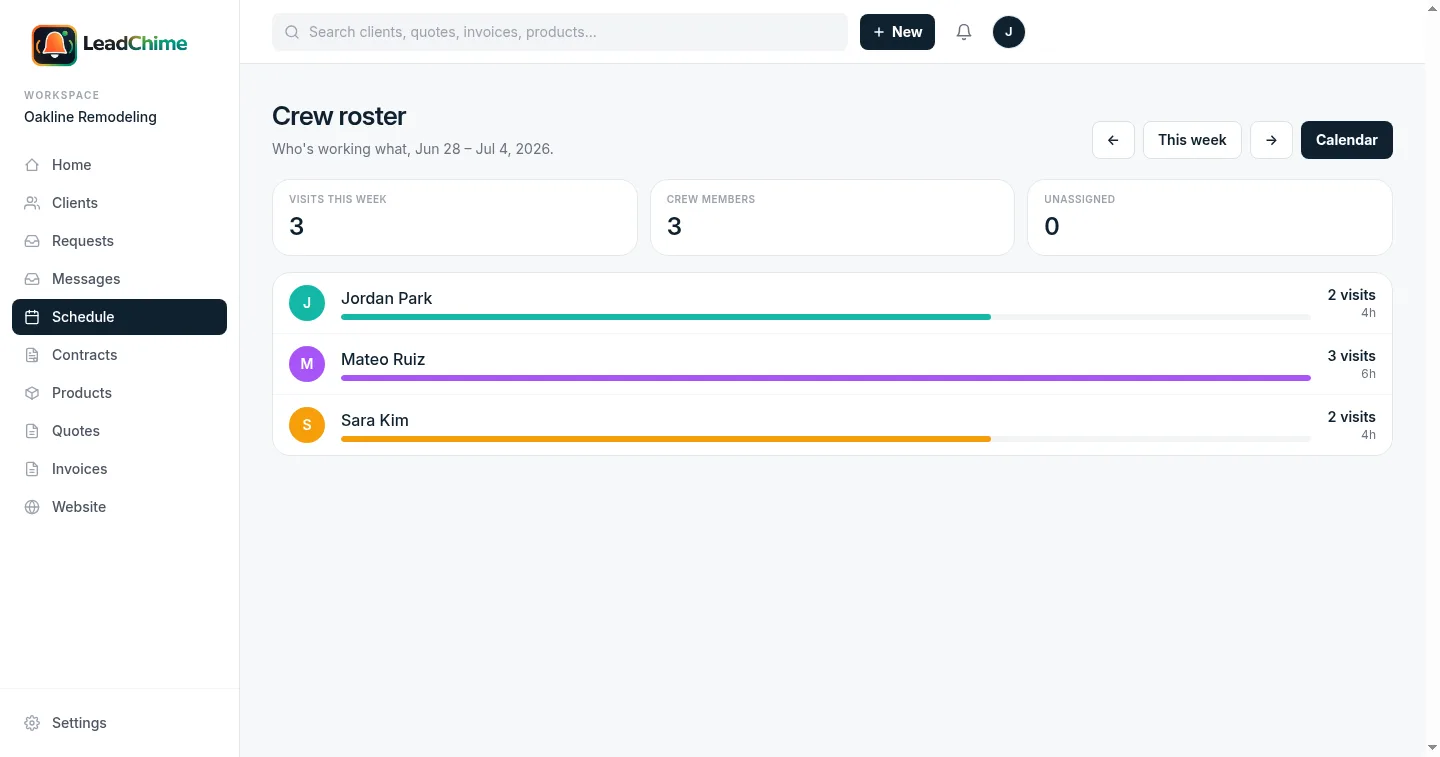
Use the arrows to move between weeks; click anyone to jump to their filtered calendar.
Reminders reach the whole crew
If team reminders are on (Settings → Schedule), the upcoming-visit reminder goes to the lead and every crew member on the job — so the whole team gets the heads-up, not just one person.
One-off vs. recurring
Book a single visit right here, or by text (see Text us). For work that repeats — weekly routes, monthly maintenance — use Contracts, which auto-generate the visits on your schedule and can invoice themselves.
Common questions
Does adding crew stop me from double-booking someone?
Not automatically — you can put the same person on two overlapping visits if you need to (sometimes that's intentional). The By team view and the roster make overlaps easy to spot so it's your call, not a surprise.
Can a crew member be the lead on some jobs and crew on others?
Yes. "Lead" and "crew" are per-visit. The roster adds up someone's total load across both roles.
What happens to the crew if I change the lead?
The crew stay as you set them. If you make a current crew member the new lead, they're simply promoted — they won't be listed twice.
Can I text the customer from a visit?
Open the job and hit Text, or use the Messages inbox — and the visit's "on my way" button still sends the classic heads-up text.
Want crew availability windows or skills-based routing next? Tell us — we build what people ask for most.
Ready to try it? Start sending branded quotes in under an hour.
Get Started