Messages — two-way customer texting
When a customer texts your business number, the conversation shows up in your inbox — and you reply right from the portal, without handing out your personal cell.
Two different SMS features, don't mix them up. Messages (this page) is you texting your customers. Website changes by text is you texting LeadChime to edit your site, add a client, or book a job. Different inbox, different purpose.
How it works
The customer texts you
Replies to your missed-call text-backs, appointment reminders, and lead auto-replies all come back to your business number — and land in Messages as a conversation. So do messages sent through the Text us button on your website.
You see it in the inbox
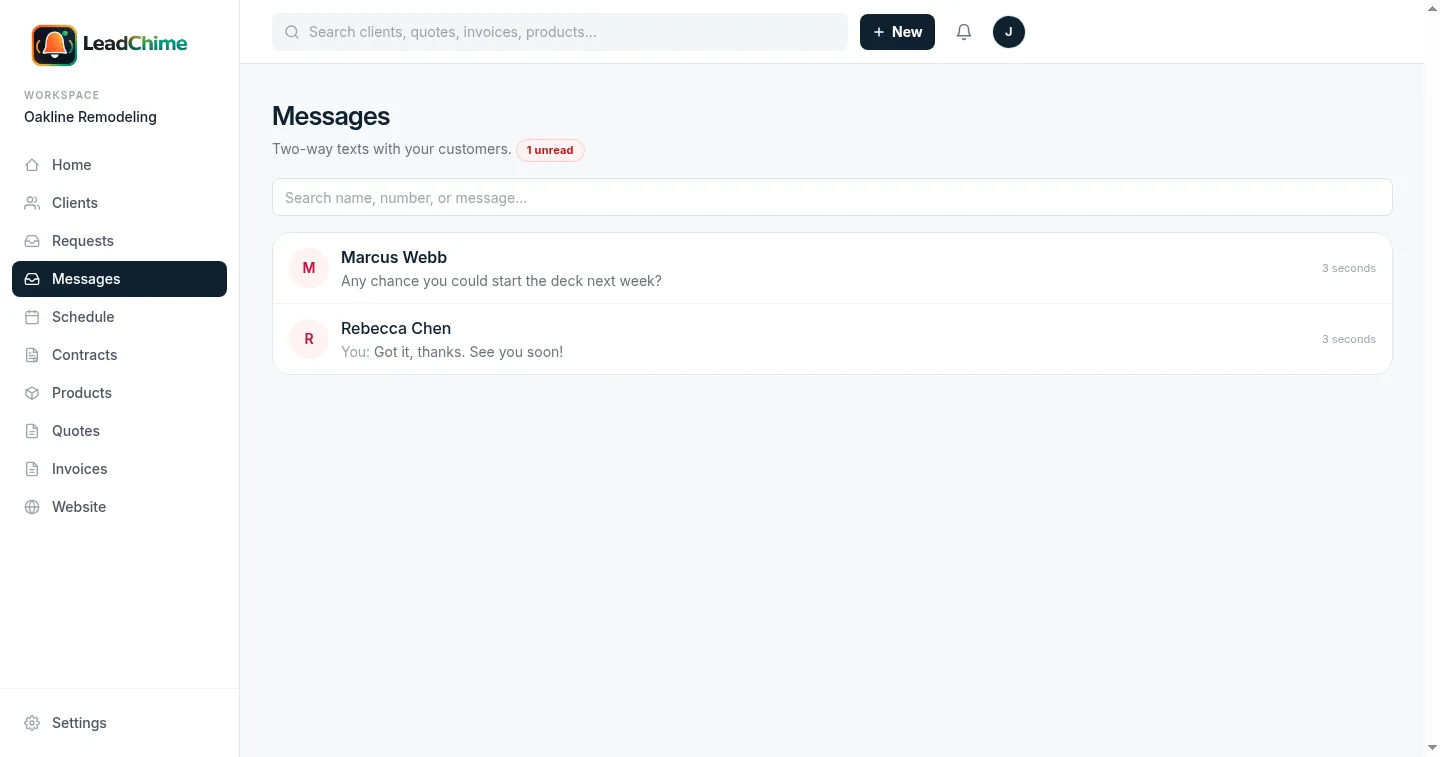
Each customer is one conversation, newest first, with an unread badge until you open it. The Messages link in the sidebar shows how many unread texts are waiting. Open a thread and it's marked read.
You reply from the portal
Type in the thread and hit Send. The text goes out from your business number, so the customer sees a consistent number — not your personal phone.
The inbox
Open Messages from the left sidebar. You'll see every conversation with the customer's name (or number if they're not a saved client), the last message, and how long ago it came in. A red count means unread inbound texts. Use the search box to find a conversation by name, number, or message text.
Replying in a thread
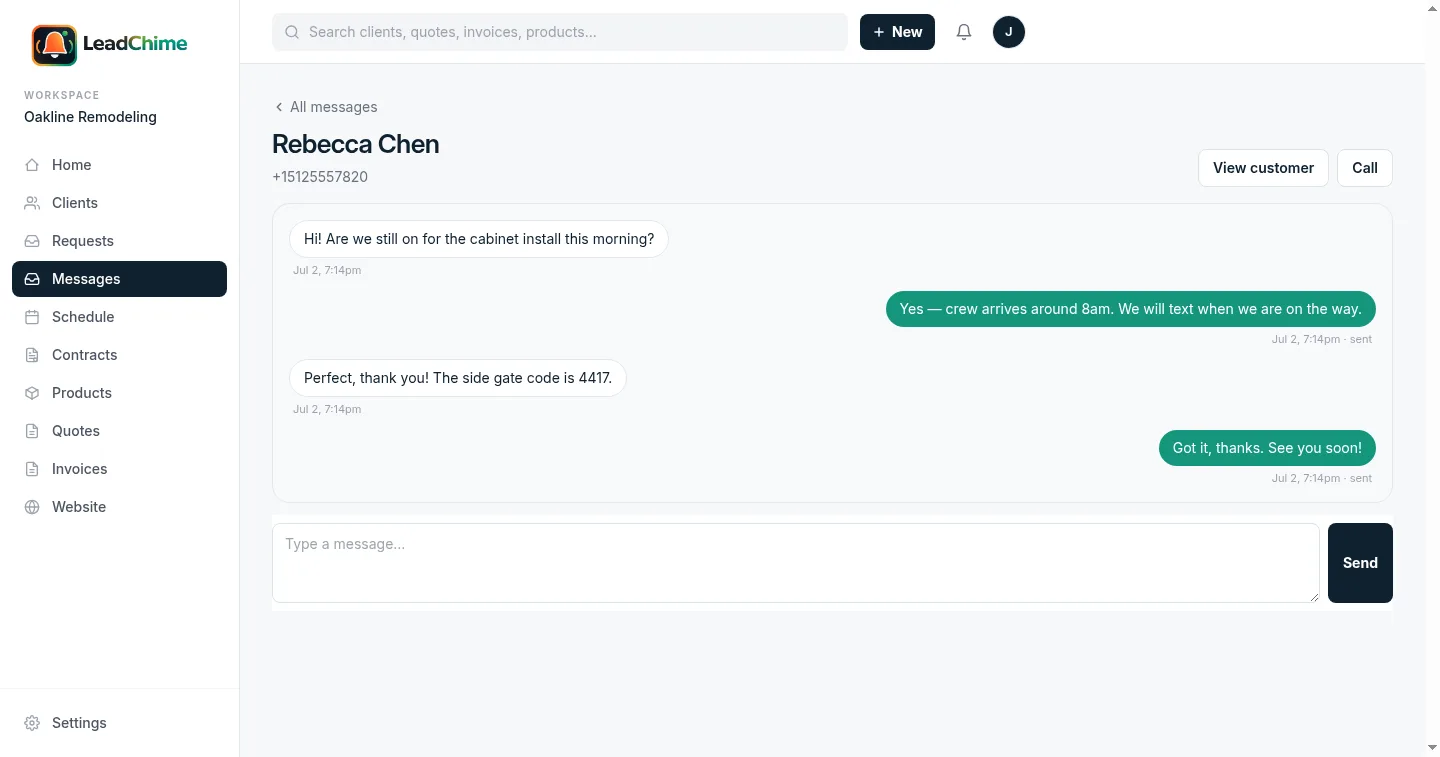
Click a conversation to open the full back-and-forth. Their messages sit on the left, yours on the right. Under each message you sent you'll see its status — sent, or queued if a sender isn't ready yet (see Sending & approval). The thread refreshes on its own, so new replies appear while you're looking at it.
From a thread you can also jump to the customer's full record with View customer, or tap Call to dial them. On a phone, those two buttons sit right under the customer's name.
Quick replies
The lightning-bolt button next to the compose box opens your saved texts. Pick one and it drops into the box already personalized — Hi Dana, this is Joe with Joe's Plumbing… — and you can edit it before sending.
Every workspace starts with five: On my way, Running late, Quote follow-up, Job complete, and Review request. Add your own or reword these under Settings → Quick replies. In a template, {{first_name}} becomes the customer's first name, {{business}} your business name, and {{owner_name}} yours; the settings page shows a live preview as you type.
Sending and receiving photos
When a customer texts a photo, it shows up in the thread. To send one, tap the paperclip, choose a photo, and hit Send — with or without a message. We resize it and convert it to a format every carrier accepts, so a 12 MB phone photo goes out fine. Photos up to 5 MB, JPEG or PNG work best.
Scheduling a text for later
Tap the clock button, pick a date and time (it defaults to tomorrow at 9 am in your workspace's timezone), write the message, and choose Schedule. Scheduled texts are listed above the compose box with a Cancel button until they go out. A quick reply or a photo can be scheduled the same way.
Handy for "I'll text you Tuesday morning to confirm" — write it now, forget about it, and it sends itself.
When a customer texts STOP
Texting law says a customer can opt out at any time by replying STOP (also unsubscribe, cancel, end, or quit). We handle that automatically: they get a one-line confirmation, and every automated text to that number pauses — campaigns, follow-ups, reminders, and scheduled texts. They can text START to opt back in, or HELP to get your business name and phone number.
In the thread you'll see an Opted out label and a warning above the compose box. You can still answer a direct question from that customer — that's customer service, not marketing — but don't send promotions. Messages we held back show as skipped in the thread so nothing disappears silently.
Texting from a customer or job
You don't have to start in the inbox. Anywhere you're already looking at a customer, there's a Text button that drops you straight into their conversation:
- On a client's page — next to Call and Email.
- On a job's page — in the header, when the client has a phone number.
Every message — inbound or outbound — is saved to that customer's conversation, so anyone on your team picks up right where the last person left off.
Sending & approval
Business texting in the US runs over a registered "sender" (A2P 10DLC). Until your account has an approved sender, outbound messages are saved to the thread as queued rather than sent — so nothing is silently lost, and they'll show clearly as not-yet-delivered.
Seeing "queued — no approved sender yet"? Your number is still being registered. That's a one-time setup — reach out and we'll get your sender approved so texts start going out.
Common questions
Does the customer see my personal number?
No. Replies go out from your business number, the same one they already texted or called. Your personal cell stays private.
Where do replies to reminders and missed calls go?
Into Messages, as a conversation with that customer — and, as before, your configured lead recipients still get notified so someone follows up fast.
Can my whole team reply?
Yes. Messages is shared across your workspace, so any team member can read and reply. The thread shows the full history so there's no double-answering.
How is this different from Campaigns?
Campaigns are one-to-many blasts to your client list. Messages is a one-to-one conversation with a single customer. Use campaigns to announce; use messages to talk.
Can visitors text me from my website?
Yes. Every LeadChime site has a Text us button in the corner. A visitor types their name, mobile number, and a message; it lands here as a new conversation and your lead-alert list gets a text. See the Text us button.
Need a hand getting your sender approved? Message us — we'll sort it out with you.
Ready to try it? Start sending branded quotes in under an hour.
Get Started