Invoices & Payments
How to get paid faster with invoices customers can open on their phone and pay in three taps.
The flow, end-to-end
This is what actually happens from "job done" to "money in the bank":
You create the invoice
From scratch, from a finished job, or converted from an accepted quote — line items carry over automatically.
You hit Send
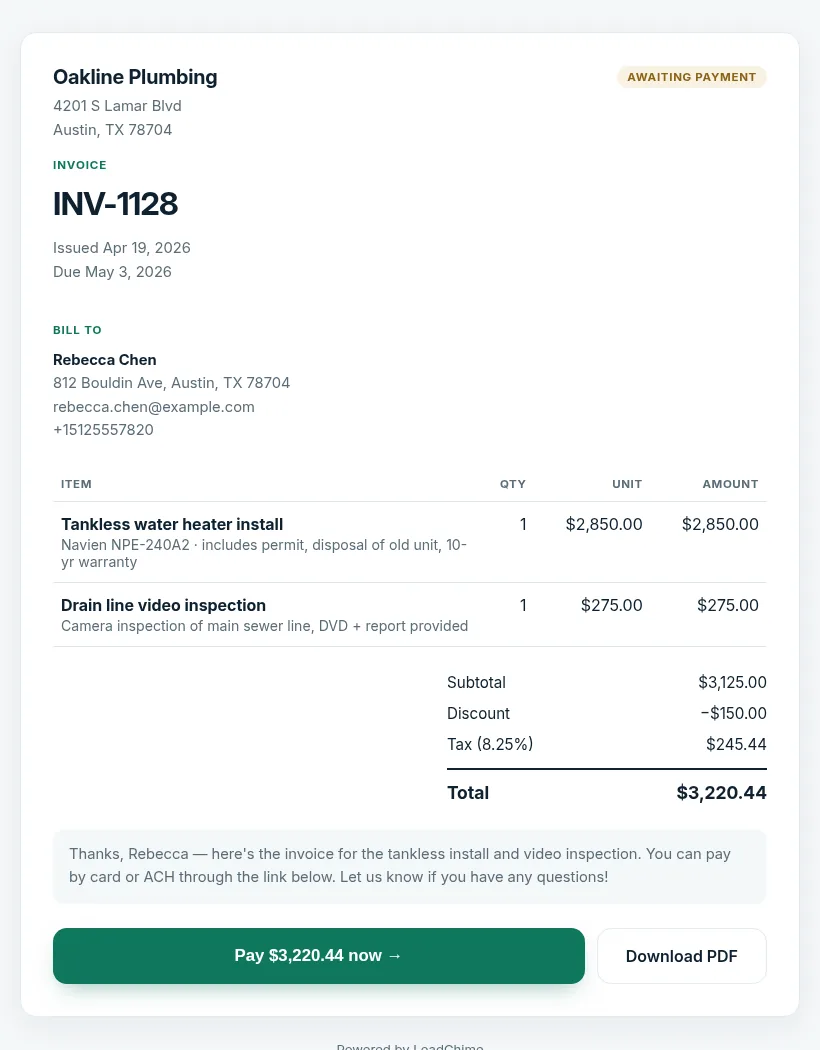
We text and email the customer a secure link. No app, no login, no PDF to print.
They pay online (or you record cash/check)
Customer pays by card or ACH from the link. If they paid offline, you record it in the Payments panel.
Automatic past-due reminders
If the due date passes and there's still a balance, LeadChime texts the customer at 1, 7, and 14 days past due.
Creating an invoice
There are three ways to start an invoice — pick whichever matches your workflow:
From scratch
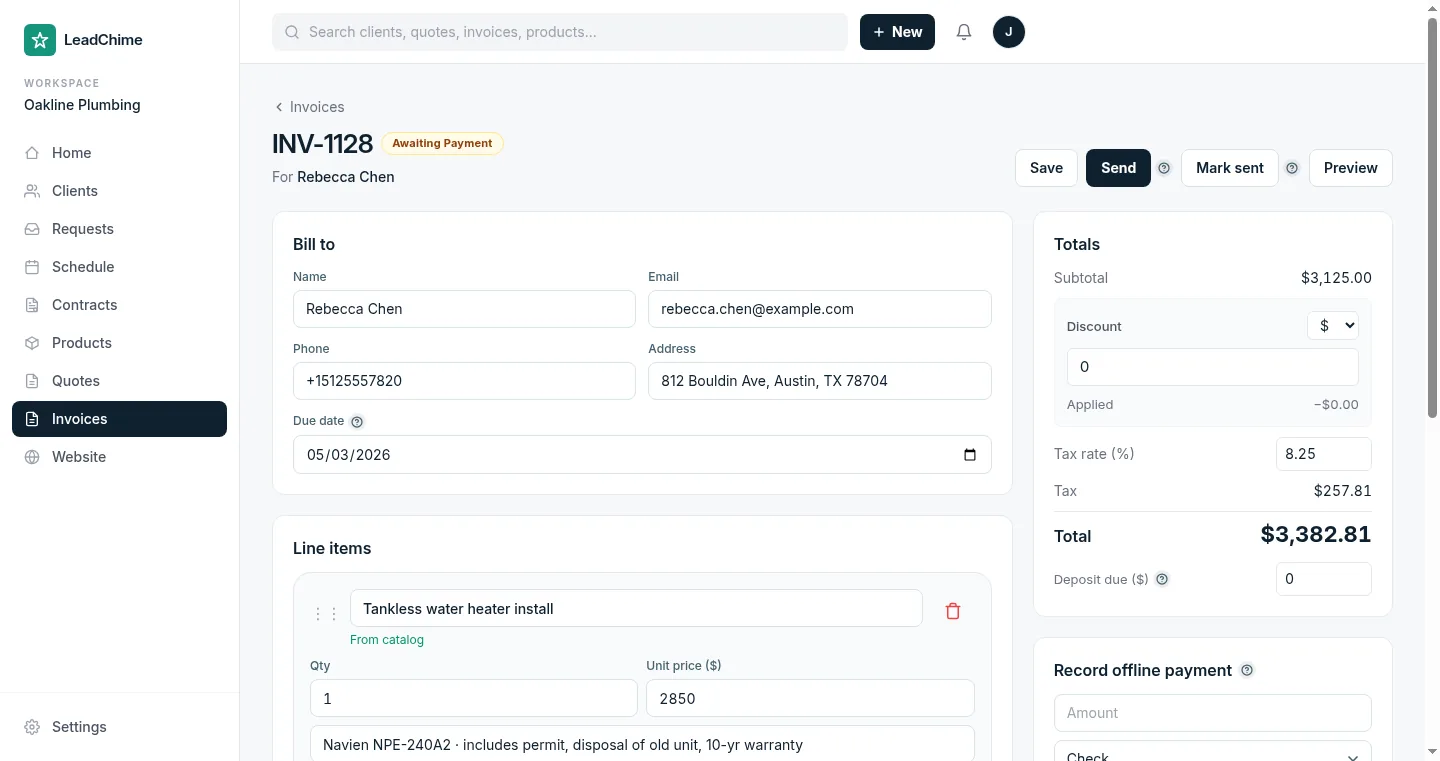
From the Invoices tab, click New invoice. Fill in the customer, add line items, set a due date. The invoice auto-saves as you edit.
From a quote (fastest)
Open the quote and click Convert to invoice. Every line item, the discount, the tax rate, and the customer details carry over — you review and send. The customer doesn't need to have accepted online first. See the quotes guide for details.
You can also go the other way: on any draft invoice, pick a quote from Start from a quote above the line items and the same details fill in. The quote is marked Converted and linked to the invoice.
From a completed service job
When you mark a job complete, LeadChime offers to create a draft invoice pre-filled with the products you logged on the job.
Tip: set a default invoice message in Settings → Invoice settings so every new invoice has a friendly note like "Thanks for your business — please pay by the due date" without you typing it each time.
Line items & totals
Same pattern as quotes: start typing in the item field and matching products from your catalog appear. Pick one and the name, price, and taxable flag fill in. You can also type items directly (without picking from the catalog) — but they won't save for reuse.
Discount. Pick $ for flat dollar or % for a percentage of subtotal. Shows on the customer's invoice as a reduction.
Tax. Enter a percentage. Tax only applies to line items marked Taxable.
Drag to reorder. Grab the ⋮⋮ handle on the left of any line item to move it up or down.
Deposits
Scroll to the Totals panel and enter a Deposit due ($) amount. The customer will see a deposit amount on the invoice — the rest becomes the remaining balance.
If a customer pays the deposit online and you later record the balance payment, LeadChime tracks both and flips the invoice to Paid when the balance hits zero.
Sending the invoice
Click Send. LeadChime does four things at once:
- Texts the customer a short message with a secure link
- Emails them the same link (if we have their email)
- Flips the invoice status to Awaiting payment
- Schedules automatic past-due reminders at 1, 7, and 14 days past the due date
If you want to record the invoice as sent without LeadChime actually sending it (e.g. you handed them a printed copy on site), click Mark sent instead of Send.
Recording payments
Two paths — online and offline.
Online (card or ACH)
If you have Stripe connected, the customer's invoice link has a Pay button that handles the transaction. Payment gets recorded automatically on the invoice and the status flips when the balance hits zero.
Offline (check, cash, ACH you received directly)
Open the invoice. On the right side, scroll to Record offline payment. Enter the amount, pick a method (check, cash, ACH, other), and add a reference if you have one (check number, transaction ID). Click Record payment.
LeadChime updates the paid amount, the balance, and the status. Partial payments are fine — the balance stays until it's paid in full.
Past-due reminders
If an invoice's due date passes and the balance isn't zero:
- Status automatically flips from Awaiting payment to Past due
- LeadChime sends three reminder texts to the customer: 1 day, 7 days, and 14 days past due
- Each message has the invoice link so the customer can pay with one tap
Reminders stop automatically the moment the balance hits zero. You can customize the reminder templates in Settings → Invoice settings.
Want to pause reminders on a specific invoice? Open the invoice and toggle the reminders off at the bottom of the Totals panel. Useful when you're working something out with a customer and don't want to send nagging texts.
Sending a batch of invoices
On the Invoices index page, check the boxes next to multiple draft or awaiting invoices, then click Send N selected. LeadChime fires off all of them at once and reports back how many succeeded.
Common use: end-of-month billing where you have 10-15 recurring customers to bill. Build them all as drafts during the week, then send the batch on the 1st.
Marking a debt as uncollectible
If a customer ghosts and you've given up, open the invoice and set the status to Bad debt. This:
- Stops all automated reminders
- Removes the invoice from "past due" totals so your numbers stay accurate
- Keeps the invoice on file for your records
The invoices index page
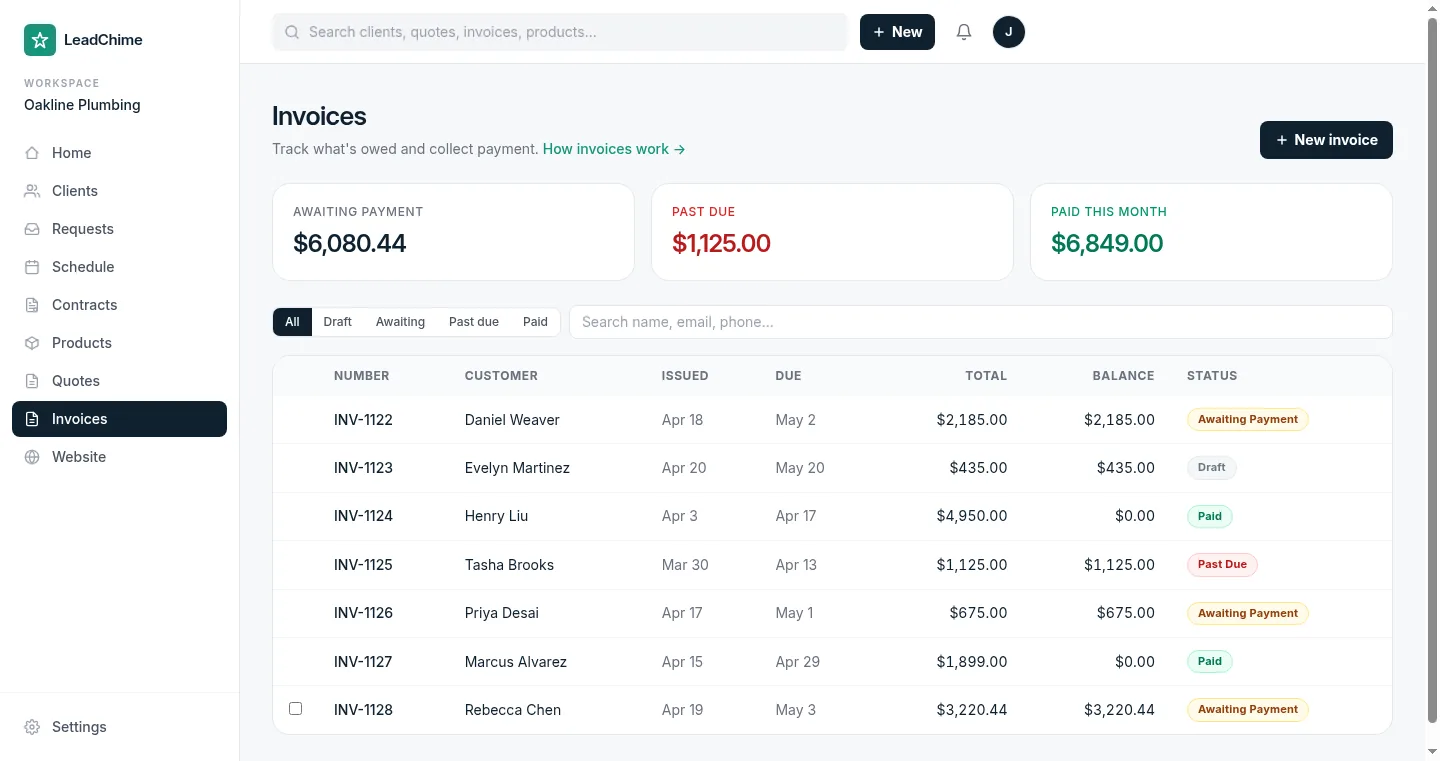
Three totals at the top:
- Awaiting payment — total balance on invoices that haven't been paid yet
- Past due — total balance on invoices past their due date
- Paid this month — total money collected since the 1st
Filter tabs show just drafts, just awaiting, just past due, or just paid. Search by customer name, email, or phone.
Common questions
Do you generate PDFs?
Not yet. The invoice link opens in the browser on any device — no download needed. PDF download is on the roadmap.
Can I edit a paid invoice?
No — paid invoices are locked. If you need to fix an error, void the invoice and create a corrected one.
Can I connect accounting software (QuickBooks, etc.)?
QuickBooks Online sync is partially supported — see contact us to get it enabled for your workspace while it's still rolling out.
What happens if the customer disputes a payment?
For online payments, Stripe handles the dispute. You'll get an email from Stripe with the details. LeadChime doesn't change the invoice status until the dispute resolves — so the customer still sees a paid invoice in the meantime.
Ready to try it? Start sending branded quotes in under an hour.
Get Started