Google Calendar sync
Your LeadChime schedule on the calendar you already live in — and no more customers booking you during the dentist appointment only your Google Calendar knows about.
What it does
Connecting your Google account does two things, and you can turn each on or off separately:
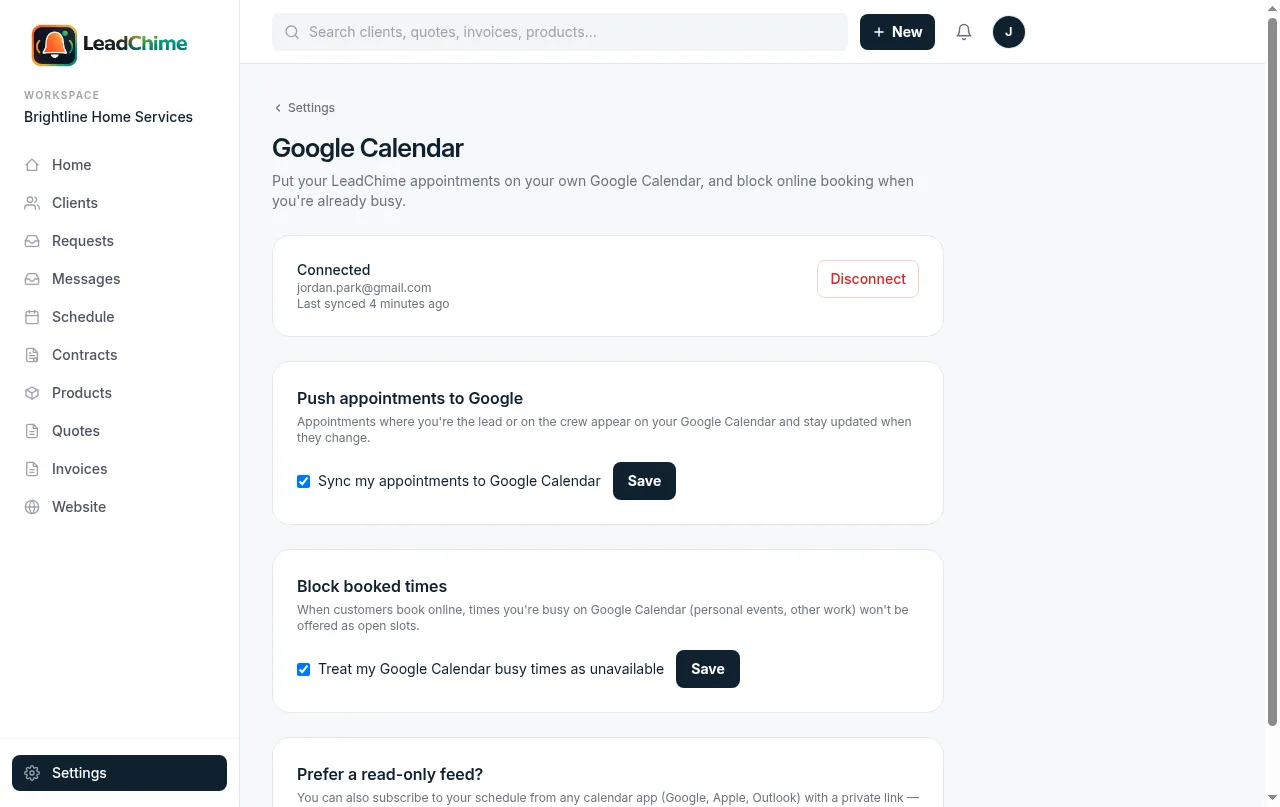
- Your appointments appear on Google Calendar. Every visit you're assigned to in LeadChime — as the lead or as crew — shows up on your own Google Calendar, and stays in sync when it's rescheduled, reassigned, or cancelled.
- Your busy times block online booking. When a customer books through your website, LeadChime checks your Google Calendar and won't offer time slots you're already busy — personal appointments included.
Connecting your account
Go to Settings → Google Calendar and click Connect Google Calendar.
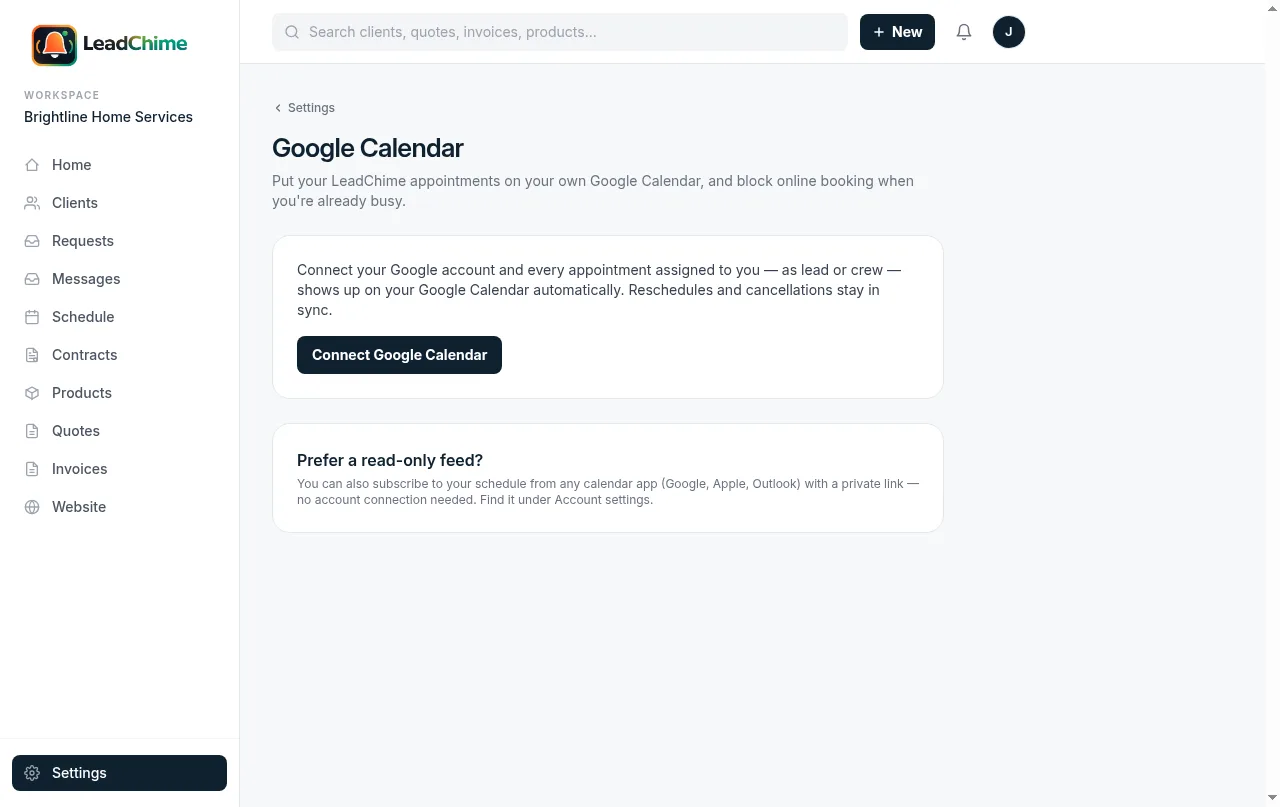
Google will ask you to choose an account and approve two permissions: managing calendar events (so LeadChime can put your appointments on your calendar) and seeing your availability (so booking can avoid your busy times). Approve both and you land back in LeadChime, connected.
It's per person, not per business. Each teammate connects their own Google account from their own login — the owner's calendar doesn't receive the whole company's schedule, and crew members get exactly the visits they're on.
What lands on your calendar
- Every appointment where you're the lead or crew — whether a teammate scheduled it, you booked it by text, or a customer self-booked on your website.
- Reschedules and reassignments follow automatically. Take someone off a visit and it leaves their calendar; add them and it appears.
- Cancelled visits and deleted appointments come off your calendar.
- "Anytime" visits (tied to a day, not a time) show up as all-day events.
Each event carries the job title, the customer's name and phone, the location, and your notes — so the calendar entry is actually useful on its own.
What LeadChime can and can't see
LeadChime never reads your calendar events. For busy-time blocking it only asks Google "is this person free or busy between 9 and 5?" — it receives busy time ranges, never event titles, details, or who you're meeting. And it only manages the events it created itself; the rest of your calendar is untouched.
Disconnecting
Hit Disconnect on the same settings page any time. LeadChime deletes its access immediately. Events already on your calendar stay there (deleting your history off your own calendar would be rude) — remove them by hand if you want them gone. You can also revoke access from your Google account permissions page.
Common questions
I edited the event in Google Calendar — does LeadChime update?
No — sync is one-way, LeadChime → Google. Make schedule changes in LeadChime and they flow to your calendar. If you edit or delete the Google copy, LeadChime will put it back the next time the appointment changes.
Does connecting change what my teammates see?
No. Your Google account is yours alone — teammates see the LeadChime schedule exactly as before, and each of them can connect (or not connect) their own calendar.
Can customers see my personal events?
Never. Your personal events only affect which booking slots show as available — customers just see fewer open times, with no hint why.
What if I only want one direction?
Use the two toggles on the settings page: keep appointment sync on and busy-time blocking off, or the other way around.
I'd rather not connect my Google account.
There's also a read-only calendar feed — a private link you can subscribe to from Google Calendar, Apple Calendar, or Outlook. It shows your LeadChime schedule in your calendar app without granting any access. Find it under Settings → Account. (It can't block booking times or push instantly, though — that's what the full connection is for.)
Want two-way sync or Outlook/Apple Calendar connections next? Tell us — we build what people ask for most.
Ready to try it? Start sending branded quotes in under an hour.
Get Started