
Jobs & job-site photos
A job is the home base for a piece of work — its visits, its products, its invoices, and now its photos, all in one place.
What a job is
A job ties together everything about one piece of work for a customer: the visits on your schedule, the products and services on it, the invoices it generates, and its profitability. Open one from the Schedule → Jobs list.
Creating a job
From Jobs, click New job. Give it a title, pick the customer, set a start date and how often it recurs (one-off, weekly, biweekly, or monthly), and add any products. When you save, LeadChime schedules the visits for you.
Recurring work? A job that repeats and has a billing cadence becomes a contract — it auto-generates visits and can invoice itself.
Job-site photos
Every job has a Job-site photos section on its page. Document the work as it goes — customers love proof, and photos settle disputes fast.
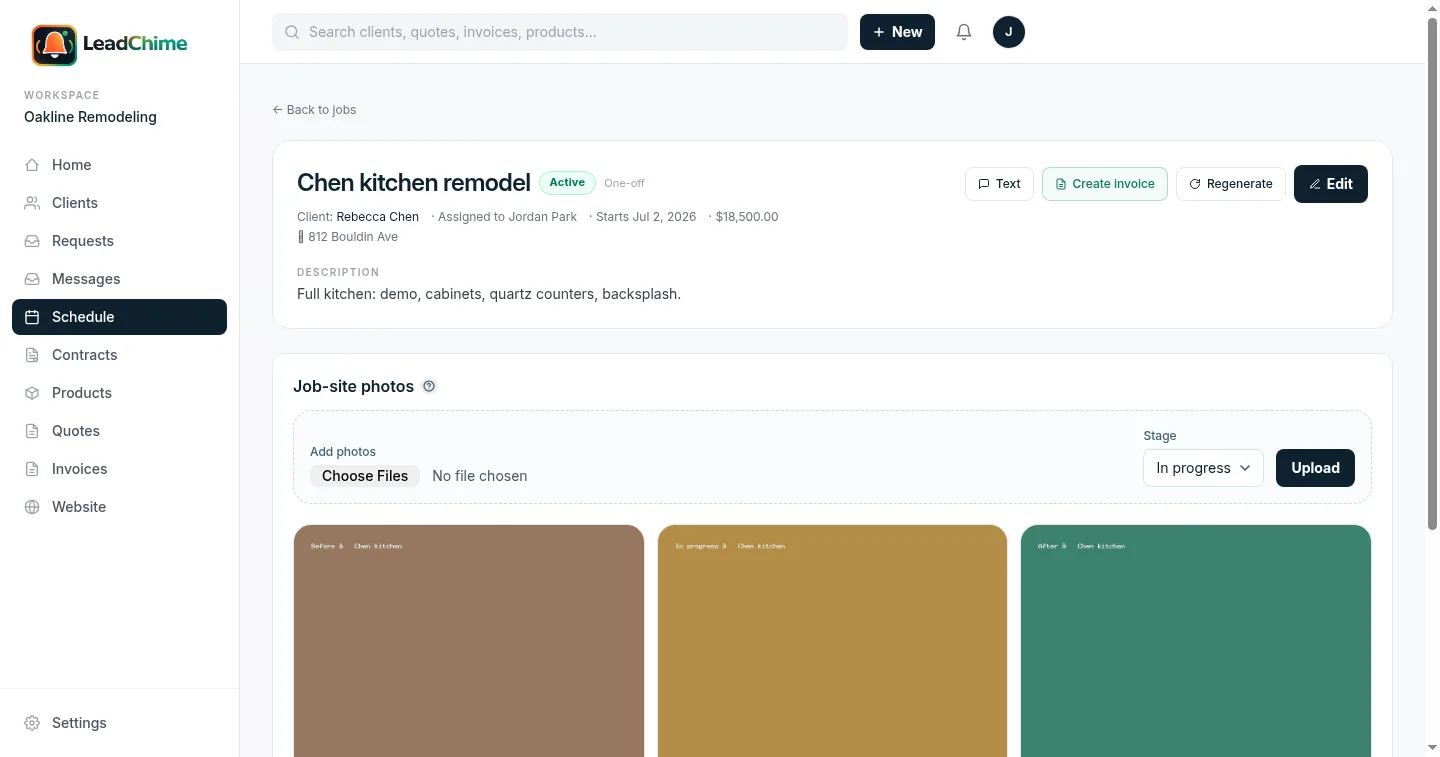
Add photos
Click Choose Files, pick one or more images from your phone or computer, choose a Stage — Before, In progress, After, or Other — and hit Upload. On a phone, "Choose Files" opens the camera or photo library.
Caption & organize
Each photo shows a colored stage tag. Add an optional caption right under it — "new quartz + backsplash", "water damage behind the sink" — and it saves as you type.
View full-size
Tap any photo to open it large in a lightbox. Hit the trash icon on a photo to remove it — the file is deleted for good.
Good to know: photos are attached to the job, so anyone on your team sees the same set. Accepted image types are JPG, PNG, HEIC, and WebP, up to 8 MB each. Deleting the job removes its photos too.
Billing a job
From a job you can spin up an invoice with one click — the header's Create invoice button carries the job's details over. The job page also shows a running Billing summary (paid / awaiting / draft) and a rough Profitability figure based on your product costs.
Common questions
Who can upload or delete photos?
Owners and admins manage photos. Members can view the job and its gallery.
Can I attach a photo to a specific visit?
Today photos live at the job level, which covers the common case. If per-visit photos matter for your workflow, let us know.
Can the customer see the photos?
Not yet — the gallery is for your team. A customer-facing photo share is on the roadmap.
Can I reorder photos?
They show in the order you add them. Drag-to-reorder is coming; for now, upload in the order you want them shown.
Want customer-facing galleries or per-visit photos? Tell us and we'll prioritize by demand.
Ready to try it? Start sending branded quotes in under an hour.
Get Started