
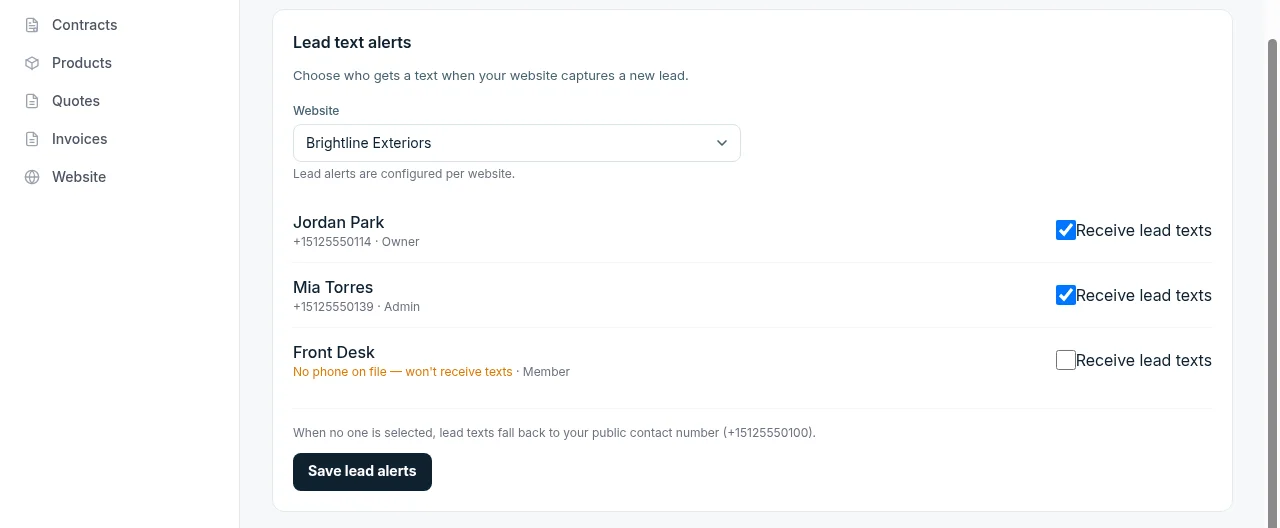
Lead text alerts
When a new lead comes in, someone needs to get a text — fast. This is where you decide exactly who that is.
Who gets the text
By default, the business owner gets every lead text. That's fine for a one-person shop. But once you've invited a few people — a dispatcher, a sales rep, your spouse who answers the phones — you probably want the alert to land on the right phone instead of just the owner's.
Lead text alerts let you pick, per website, which team members get notified. Toggle someone on and they get the text. Toggle them off and they don't. That's the whole idea.
Add your team first. You can only send alerts to people who are on your account. Invite them from the Team page — teammates are free and unlimited. Make sure each person has a phone number saved, or there's nothing to text.
Setting it up
Open the Team page
From your dashboard, go to Team. Scroll to the Lead text alerts section. (You'll need to be an owner or admin to change it.)
Pick the website
If you only have one website, skip this — it's already selected. If you run more than one site, choose which one you're setting up from the Website dropdown. Each site has its own list.
Flip the switches
You'll see every person on your team with a toggle next to their name. Turn on everyone who should get a text when this site captures a lead. Anyone without a phone number on file is flagged — they won't receive texts until you add one.
Save
Click Save lead alerts. That's it — the next lead goes to exactly the people you picked.
You don't have to start from the Team page, either. Open any site from your Website page and you'll find the same shortcut near the bottom — click Manage on Team to jump straight to that site's recipient list.

What sends an alert
The people you pick here don't just get new-lead texts. They're your "something happened, look now" list for the whole money path:
- A new lead from your website. Someone fills out your contact form — everyone you've selected gets a text with the lead's name, number, and message.
- A text from your website's Text us button. A visitor sends a message through the Text us button — your people get a text with a link straight to the conversation in Messages.
- A quote is accepted or declined. The customer taps a button on the quote you sent; your people get a text and an email so they can schedule the work (or follow up).
- A payment is disputed. A customer opens a chargeback — an urgent text and email go out so someone can respond before the deadline.
- An automatic charge fails. A recurring-contract charge gives up after retries; your people are told so they can chase it.
Texts vs. emails. New-lead alerts go out as a text (to anyone you picked who has a phone). Quote and payment alerts go out as both a text and an email — so a teammate with only an email on file still gets those.
If you don't pick anyone
You're never left with leads going nowhere. If no one is selected for a site, alerts fall back to your public contact number (the one shown on your website) and the account owner. So out of the box, things just work — setting recipients is how you take control once you have a team.
The moment you turn even one person on and save, that becomes the list, and the fallback stops. Turn everyone off and save, and you're back to the fallback.
More than one website?
Recipients are set per website. If you run several sites under one account, each can route its leads to different people — the plumbing site's leads to one tech, the painting site's to another. Use the Website dropdown to switch between them, and save each one separately.
Common questions
Someone on the list isn't getting texts.
Check that they have a phone number saved on their profile. New-lead alerts are text-only, so a teammate with no phone won't get them — the toggle flags this for you. They'll still receive quote and payment alerts by email.
Who's allowed to change the list?
Owners and admins. Regular members can be added to the list, but they can't edit who's on it.
What happens when I remove a teammate?
They're automatically taken off every site's alert list. You don't have to clean it up by hand.
Can I send alerts to a number that isn't a team member?
Not directly — the list is built from people on your account, so there's one source of truth and removing someone removes them everywhere. If you want a shared line (like a front-desk phone) to get leads, add it as the owner's or a teammate's number, or leave the list empty so the public contact number gets them. Tell us if you need something more flexible.
Ready to try it? Start sending branded quotes in under an hour.
Get Started